ST25R3911B NFC Board Usage
The ST25R3911B NFC Board can be used as an NFC reader/writer to refresh images on NFC-Powered e-Paper products. This page describes the process of refreshing images using this development board, including two methods: reading images from a TF card and transferring images via UART. The screenshots use the 2.13inch NFC-Powered e-Paper as an example; in practice, select the corresponding screen model.
Program Download
- The reader/writer comes with a pre-programmed firmware. If you do not need to modify the program, you can skip the download process and start testing.
- The ST25R3911 NFC Board (referred to as NFC Board) provides an SW download interface. You can connect a programmer via this interface to download the program to the driver board.
- After the program download is complete, connect the reader/writer to the PC using a Micro USB cable via its Micro USB interface.
Refresh Steps
-
Connect the reader/writer to a computer or 5V power supply via its USB interface using a USB cable.
-
Place the prepared monochrome bitmap file on a TF card, then insert the TF card into the card slot of the NFC Board.
-
Connect a 5V power supply to the USB interface of the NFC Board.
-
After the screen displays the directory, use the buttons to select the e-Paper model and the corresponding image to refresh.
- Use the buttons to navigate and select the "Update e-Paper" option.
- Select the screen model to refresh according to your screen model (the steps in the images use 2.13 as an example; pay attention to the actual screen model in use).
- Select the image transfer method.
- Read image from TF card: "Update E-paper SD"
- Select the image (the image resolution must match the screen resolution).
- Confirm the image.
- Transfer image via UART: "Update E-paper UART"
- Send a BMP format image via UART (the image resolution must match the screen resolution).
- Read image from TF card: "Update E-paper SD"
- Place the coil of the NFC Board near the center of the NFC-Powered e-Paper.
- Wait for the refresh to complete.
Select Update Image Select Screen Model 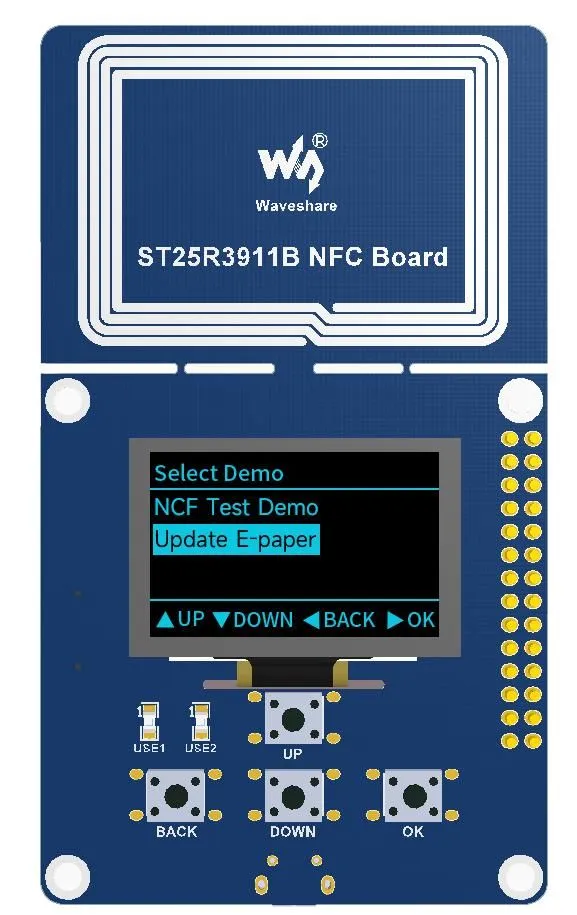
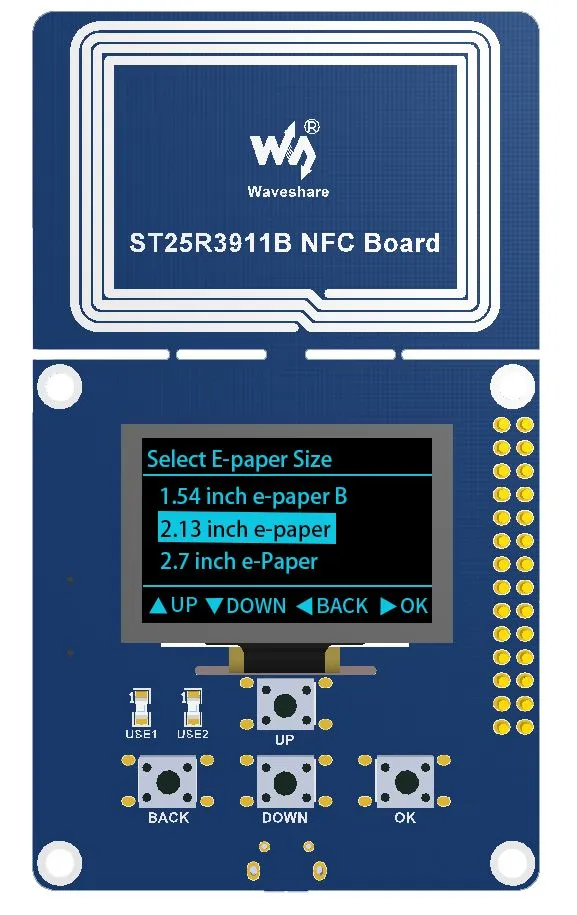
Select TF Card Method Select Image Confirm Selection Read Image from TF Card 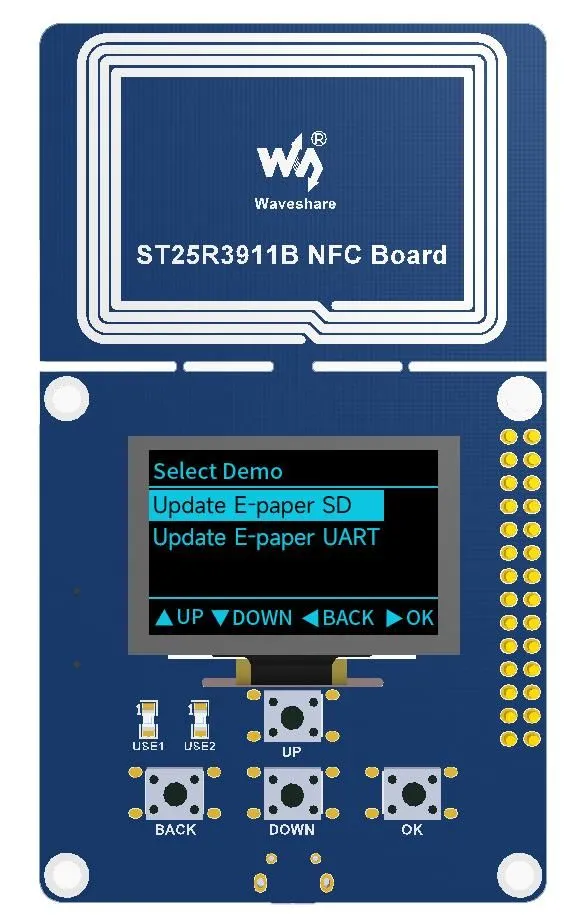
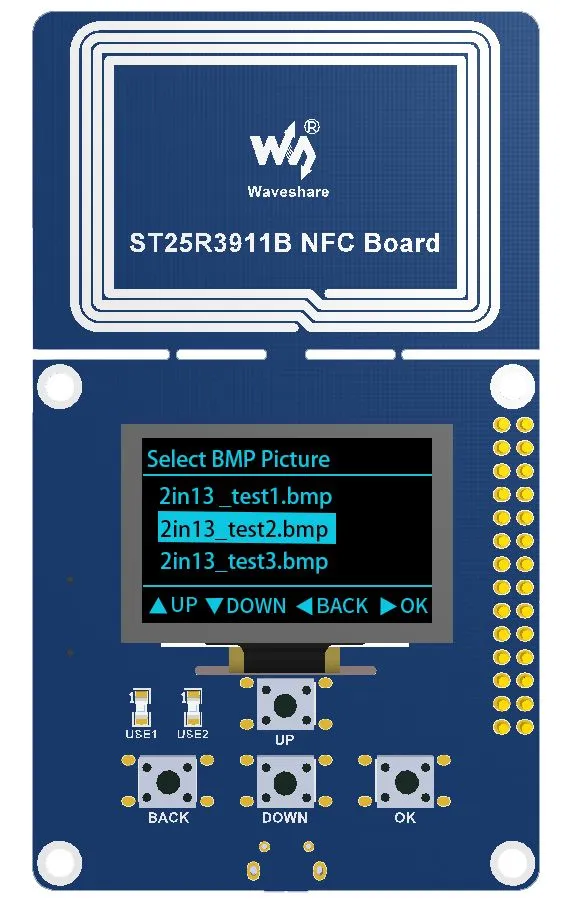
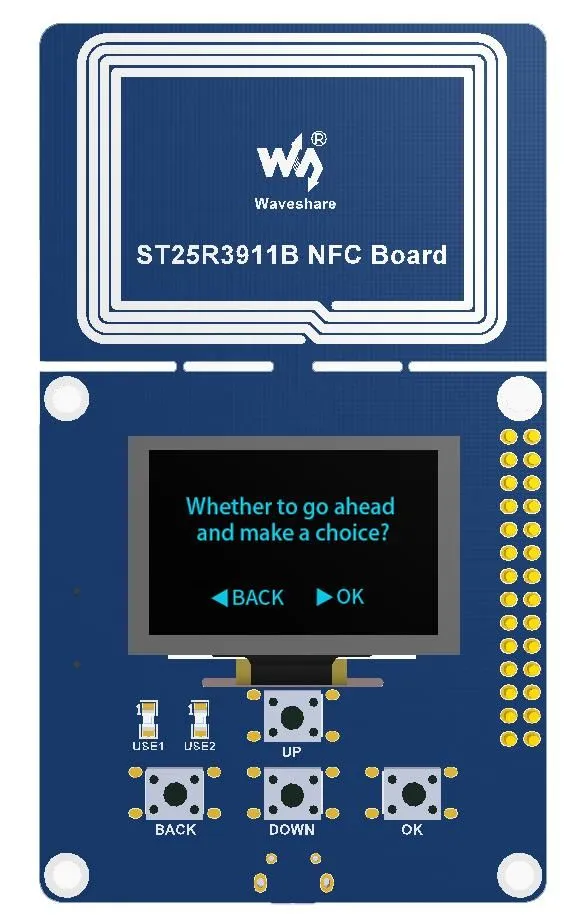
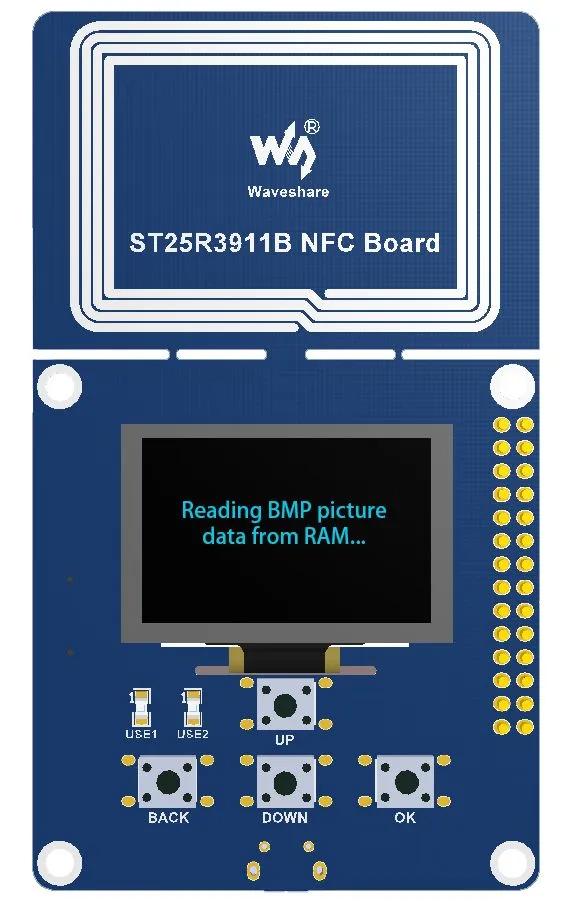
Select UART Method Wait for Image Transfer to Complete 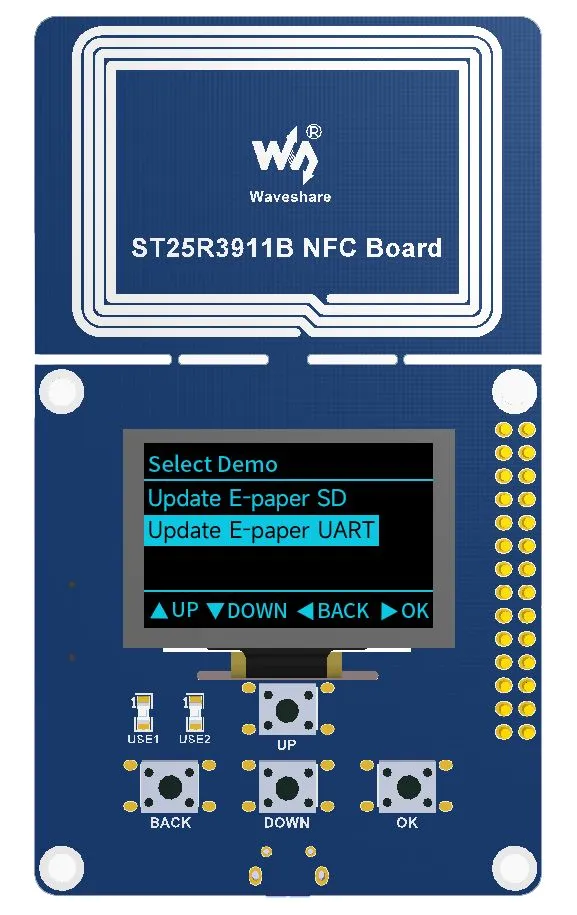
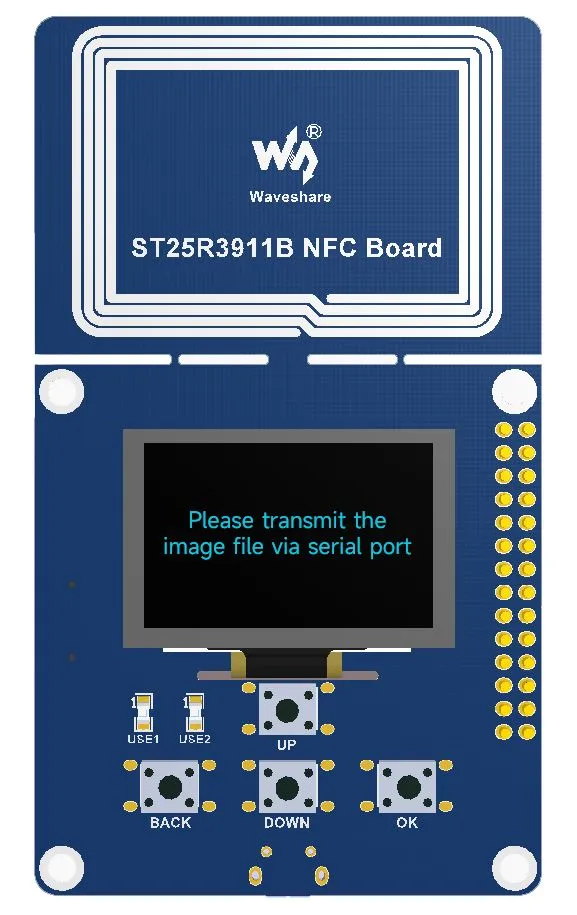
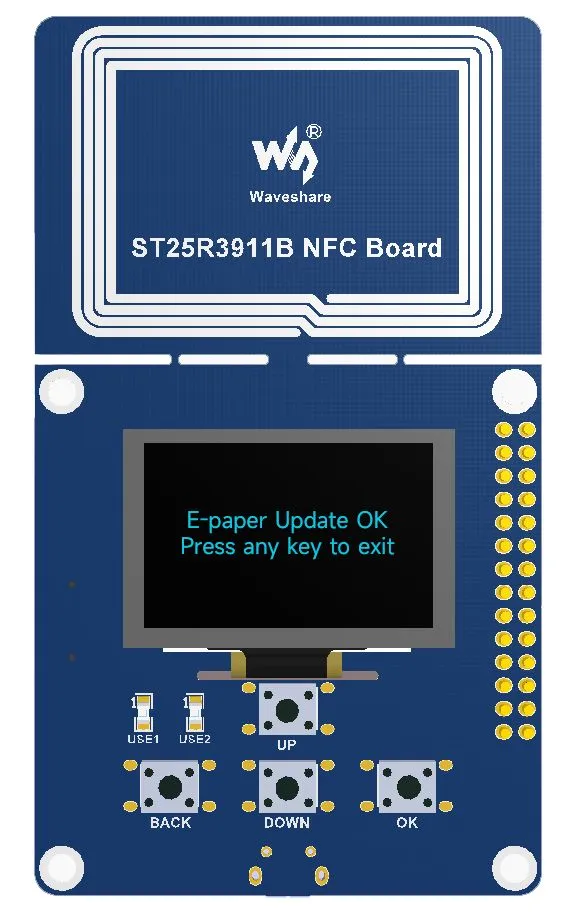
Prompt to Approach Screen Screen Sensing Successful Configuring Screen Refreshing Refresh Successful 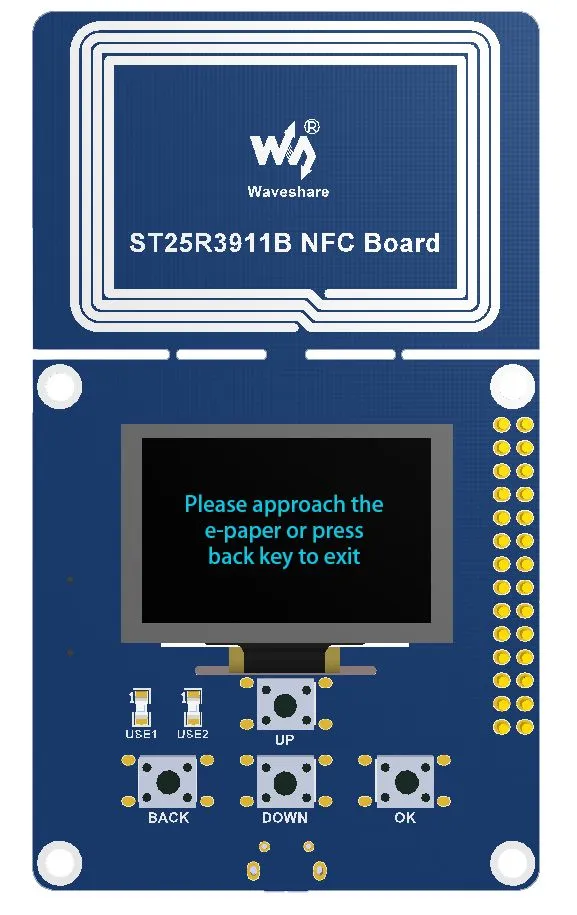
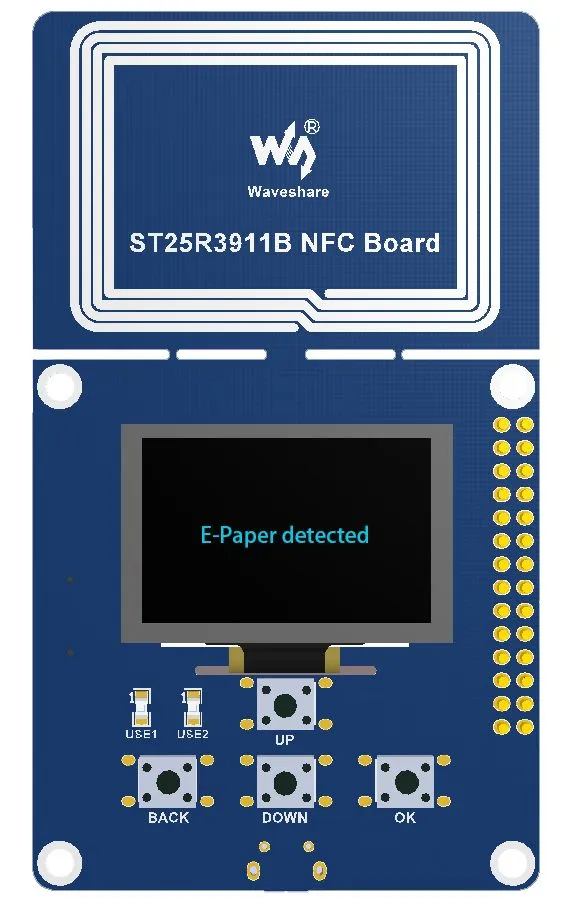
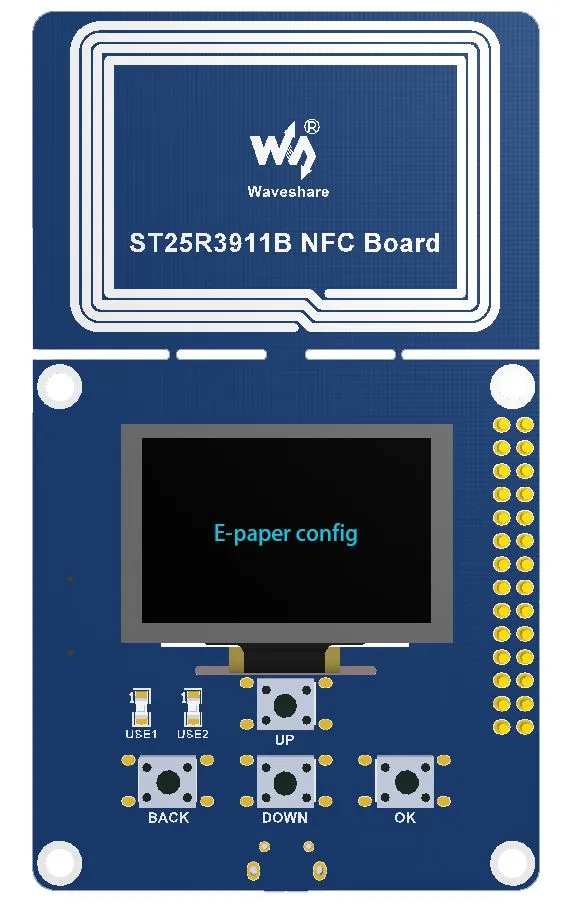
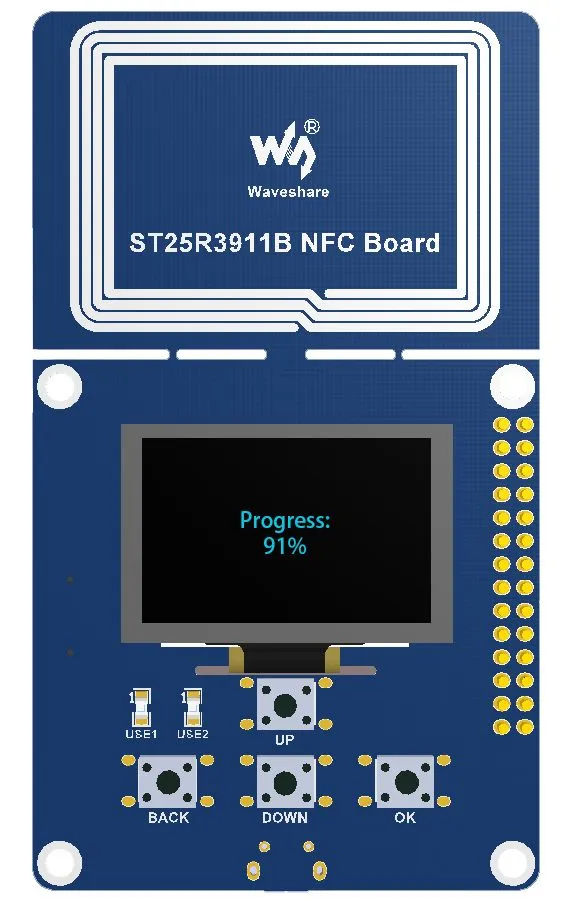
-
If a refresh failure prompt appears, move the reader/writer away and then place it back to attempt the refresh again.